16. Project, autosave and diagnostics
This page is about what happens to the operator's work on disk: how the program stores and protects the project (the file, autosave, recovery after a crash) and what to send the developer if something goes wrong (SEND FEEDBACK, session logs, crash dumps), or if the license needs sorting out.
Project
The DL20 logo in the top-left corner of the top bar opens the application menu. The top part of the menu handles the project file: New Project (Ctrl+N), Save Project (Ctrl+S), Save Project As… (Ctrl+Shift+S), Load Project… (Ctrl+O); below that — Open Project Folder and Open Logs Folder, which open the right folder in Explorer.
The project file .dlproj is a single JSON document with the whole show's setup: grid layers and windows,
effects, bindings, the timeline and tracks, screens/slices/masks/blends, DMX fixtures, engine and audio
settings. The format has a schema version with migrations and an atomic write to disk (the write either
fully succeeds, or the file on disk is left untouched) — an older build of the program opens a document
saved by a newer one without failing.
On the first run of a portable copy, the project is saved by default next to dl_composition.exe as
project.dlproj; if that folder is not writable (for example, a copy installed into Program Files) —
into Documents\DL\project.dlproj. Save Project As… always asks for the path explicitly and appends
the .dlproj extension itself if it is not given.
If the project has unsaved changes, New Project, Load Project…, Exit, closing the window with the X button or Alt+F4, installing an update (INSTALL UPDATE) and switching the project through autosave recovery first ask: "There are unsaved changes in the project. Save them before "…"?" — buttons Save / Discard / Cancel (in the Russian interface — Сохранить / Не сохранять / Отмена). A failed save (for example, the folder is not writable) shows a separate warning and cancels the original action, losing nothing. After that question the X button and Alt+F4 ask one more — "Quit DL20?": the show goes dark only after both answers, and Cancel on the first or No on the second keeps the window open and the outputs running. Autosave (below) does not cancel this question: changes count as unsaved until the project file is saved explicitly.
If Load Project… cannot read a file (status LOAD FAILED), the open project stays as it was — the program checks the whole file first and only then applies it. A successful Load Project… or New Project clears the undo history (Ctrl+Z): an edit of the previous project cannot be undone in the new one.
New Project (Ctrl+N), once that question is answered, returns the program to the state it has on a regular start without a file: empty grid windows, stopped layers, default layers and effects, a timeline with a single MAIN track. The composition resolution, frame rate, bit depth, audio output, Link, timecode generator and DMX are not touched — those are settings of the SETTINGS screen, not project content. The project path becomes empty ("untitled"); Save Project (Ctrl+S) right after that opens Save Project As… instead of overwriting the file that was open before.
Project resources
If a file is not found in the open project — a layer, a timeline block, an output mask or a GLSL slot — the status line after loading ends with "PROJECT LOADED · НЕТ ФАЙЛОВ: N" in red (instead of plain "PROJECT LOADED"; the Russian tail means "MISSING FILES: N"). If the program's window is visible at that moment and no probe is running, the "Project Resources…" window (the application menu item right after Open Project Folder) opens on its own — without taking keyboard focus: Space and the transport keys still go to the program's window. It can also be opened by hand at any time, even when every file is in place.
The table has three columns:
- Where — what uses this file: a layer (
L<n>), a timeline block's track and lane with its timecode, an output screen or slice mask, a window and a custom GLSL effect slot, a deck grid cell ("cell LS "). - File — the path stored in the project; hovering over the row shows the full path as a tooltip.
- State — OK (the file is in place at the stored path), found:
(the file turned up somewhere else — the project folder, the FILES browser folder, or a search folder added with "Find Folder…") or MISSING FILE.
The buttons below the table:
- "Find Folder…" adds a search folder to the project (it is saved with the project — the setting survives a restart); a file that moved is found by name, right in that folder or in a same-named subfolder. A layer that was left empty at load time because its file was missing takes the found file on its own, with no need to assign it by hand. The same list of roots is also extended by importing a track package (page 09) — the imported package's folder is added here on its own, with no separate "Find Folder…" step.
- "Replace File…" picks another file for the selected row by hand. For a timeline block, one command (Ctrl+Z undoes all of it at once) changes the path on EVERY block on every track that had the same file, and the block's length and duration are recalculated from the new file. For a layer and for a deck grid cell, it reassigns it again (the cell's window settings are kept). A cell is replaced only while it still holds the path of that row — if the grid was edited after the window opened, press "Recheck"; on a cell that is already open, the new file resets its In/Out points, just like dropping a file onto it. A file the program cannot open (not a video, damaged) is refused: a message says nothing was replaced, and the blocks, the layer and the cell stay as they were. For an output mask or a GLSL slot the button is disabled — replacing those still goes through the OUTPUT screen (the mask) or the effect's card (GLSL), as before.
- "Recheck" scans the project again without reloading it and, like "Find Folder…", puts a file that is back in place into its empty layer. Until the layer has taken its file (it is missing or does not open), its row reads MISSING FILE, even if a file already exists at the path.
The file path of a layer left empty at load time is remembered and saved with the project until the layer
gets other content (by hand, a timeline cue, OSC/MIDI or a controller) or the operator clears the layer with
STOP — then the path is forgotten. A deck grid cell (COMPOSITION screen) works the same way: if its file
is not found, the path is remembered and saved with the project, and the cell itself shows as NO FILE on
the grid instead of an empty cell with a + sign (see 06. Composition)
and keeps its place until it is filled again through "Find Folder…", "Replace File…", or by dropping a new
file onto it; launching such a cell is refused, with a status line pointing to this same window, and the
remote panel answers it with "no file". Such a cell counts as occupied: double-clicking a file in the FILES
browser puts the file into a neighbouring cell of the line instead of over it, and – LINE on a line with
such cells asks for confirmation, as it does for a line with clips.
On the timeline canvas (see page 09), a block whose path is not found
gets a diagonal hatch and a "MISSING FILE ·
Autosave and recovery
The program saves a copy of the project on its own every 30 seconds into %LOCALAPPDATA%\DL\autosave\,
rotating the last five snapshots — separate from the file that is open and saved by hand.
If, on the next launch, the program finds an autosave newer than the project that was open, a Recover DL20 autosave dialog appears before the usual start: "DL20 found a newer autosave from the previous session. Restore it now?" — buttons Yes / No. If the previous recovery attempt itself led to the program crashing, a warning line about that is added to the dialog, and the default button becomes No instead of the usual Yes. If crashes repeat on the same autosave snapshot a second time in a row, the program no longer offers to restore it: the snapshot is renamed ("into quarantine"), and the status line gets a note that the autosave is quarantined, with the path it was moved to.
After Yes the program loads the snapshot. On success the status line reads "RECOVERED — SAVE TO KEEP": the
recovered project is marked as changed and is saved into the default project file, not into the snapshot itself
(snapshots are overwritten in rotation) — save it so it is not lost. If the snapshot is damaged and does not
load, the status line shows a red "RESTORE FAILED: dl-composition-1.restore-failed-<date-time>.dlproj (autosave no longer overwrites
it), and the open project and its save path stay as they were (since 0.8.91; before that, the program reported
"RECOVERED" in this case too). The dialog cannot pick another snapshot: the set-aside one and the other snapshots
are in the same folder — copy the one you need to another folder and open the copy with Load Project…. If
loading failed after part of the project had already been applied, the status reads "RESTORE FAILED:
Diagnostics: SEND FEEDBACK, logs and crash dumps
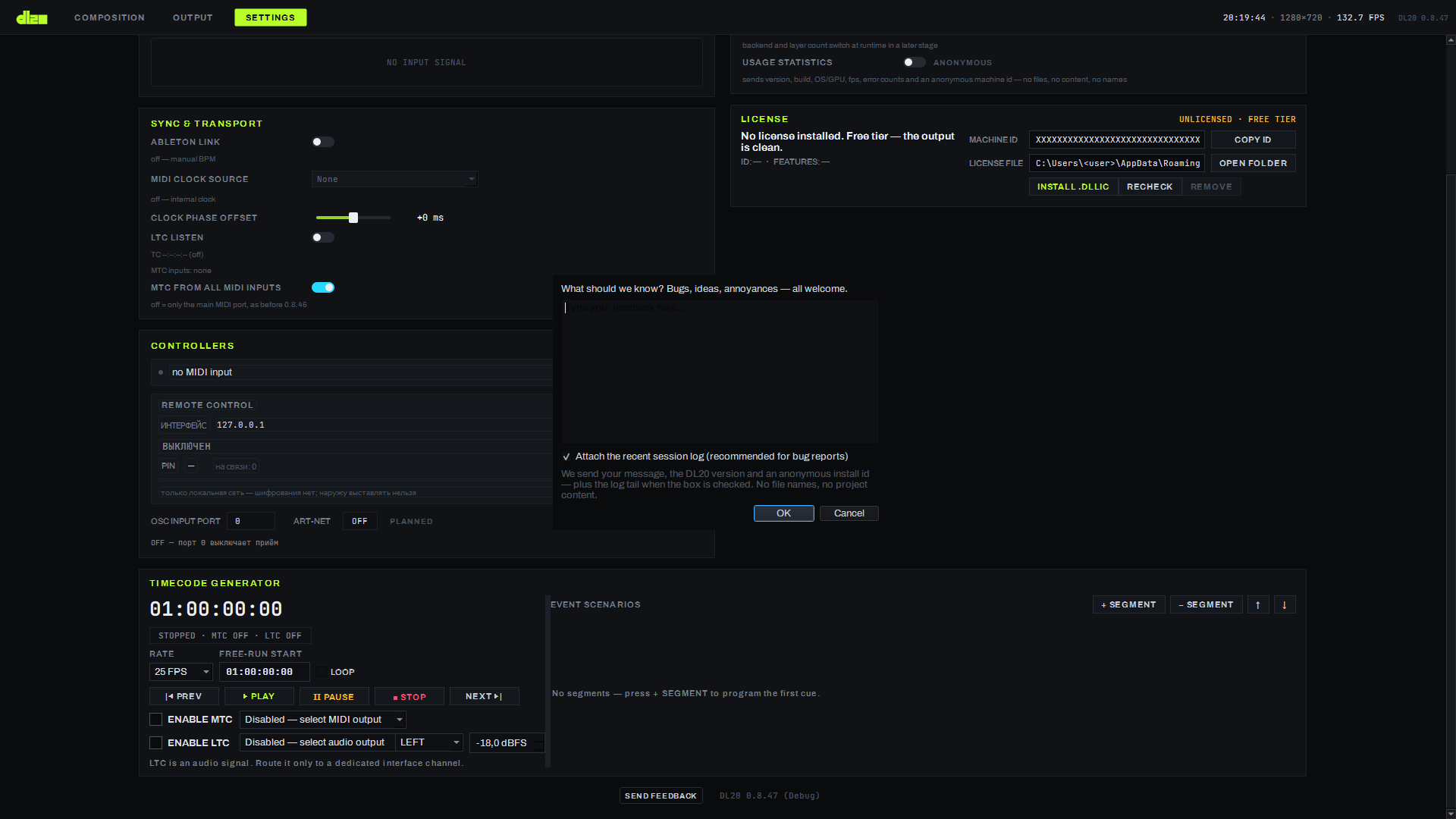
The SEND FEEDBACK button at the bottom of the SETTINGS screen opens this window at any moment during work. The text is free-form; the "Attach the recent session log" box is checked by default and attaches the tail of the current session log. What reaches the developer is the text itself, the DL20 version and an anonymous install id — without file names or project content; the log tail is added only while the box stays checked.
Separate from feedback sent on request, SETTINGS has a USAGE STATISTICS toggle — anonymous telemetry: the program's version and build, GPU model/OS, fps, error counters and an anonymous machine id, session start and end, crashes and the fact that feedback was sent — without files, content or names. It is turned off with the same toggle at any time.
For a problem that cannot be described in a couple of words in SEND FEEDBACK, it is worth attaching to the report:
- the session log —
%LOCALAPPDATA%\DL\logs\, a separate file for every run of the program; - the crash dump —
%LOCALAPPDATA%\DL\crashes\(minidump), rotating the last ten.
Both folders open from the same application menu (Open Logs Folder — for the logs).
What a sendto code in the log and on the OUTPUT line means
When a network output (volumetric, installation, DMX) loses frames, since 0.8.96 the session log and the
volumetric status line (OUTPUT screen, WIRE … dropped · sendto …) carry the first sendto error code with the
receiver's address. Attach the log to SEND FEEDBACK (the log box is checked by default) — the code shows what is
missing. Common Windows codes:
| Code | Name | What it usually means |
|---|---|---|
| 10035 | WSAEWOULDBLOCK |
the socket's send buffer is full — the network cannot take the data fast enough |
| 10049 | WSAEADDRNOTAVAIL |
the destination address is not available (for example 0.0.0.0) |
| 10051 | WSAENETUNREACH |
network unreachable: no route to the address (for example 240.0.0.1) |
| 10065 | WSAEHOSTUNREACH |
host unreachable |
| 10054 | WSAECONNRESET |
ICMP "port unreachable" from the receiver (since 0.8.96 SIO_UDP_CONNRESET is off, this should not occur) |
| 10039 | WSAEDESTADDRREQ |
an installation receiver's address is not a dotted IPv4 (for example a host name): no packets go to it, the text reads "receiver 'sendto was not called) |
If frames are lost and there is no code, the sender's full queue is dropping them — the log then says "queue full" instead of a code.
License

The LICENSE card in SETTINGS shows the license state on this machine: ACTIVE with the client's name, or UNLICENSED · FREE TIER with a short reason; next to it — the license id, the feature list and the expiry date, if there is a license. While no license is installed, the output still stays clean — that is the current free-tier mode. A third state — COPY DISABLED · REVOKED: this copy of the program has been revoked by the publisher and disabled.
- MACHINE ID — this machine's fingerprint; the COPY ID button copies it to the clipboard for issuing a machine-bound license.
- LICENSE FILE — the path to the active license file; OPEN FOLDER opens its folder.
- INSTALL .DLLIC picks a license file and activates it without restarting the program; the signature, product, expiry and machine binding are checked before the swap — an invalid file does not break a working license. The previous file is kept alongside as a backup.
- RECHECK re-reads the current license file; REMOVE disables the license on this machine, also keeping a backup.
Update
The ABOUT row at the bottom of the SETTINGS screen carries the SEND FEEDBACK button and the current version label; when the program finds a new version, an INSTALL UPDATE button appears in the same place — installing and updating the program, including this button, is covered in detail on page 02.

Limitations
- Crashes on exit from the program, observed on one of the field machines, have not been diagnosed yet — if this happens, the most useful thing to include in a report is the session log and a fresh crash dump from the folders above.
- Output masks and GLSL slots in the "Project Resources…" window are list-only: the "Replace File…" button is disabled on their row, and even when the file turns up ("found: …") through the same lookup used for a layer or a block, loading the mask or the effect does not use that lookup — a mask or a GLSL file that moved still has to be reassigned by hand, as before.
- A layer path assigned through "Find Folder…" is stored in the project as the path of the file that was found, not as the path that was stored before; for a timeline block it is the other way round — the stored path stays as written, together with the list of search folders.