03. Quick start
The short path from launching the program to the first picture on a projector — without covering every screen, just what is needed for the first show.
How to do it
- Launch
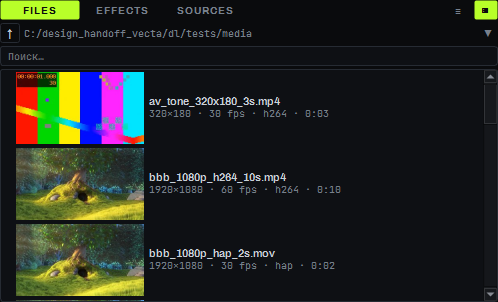
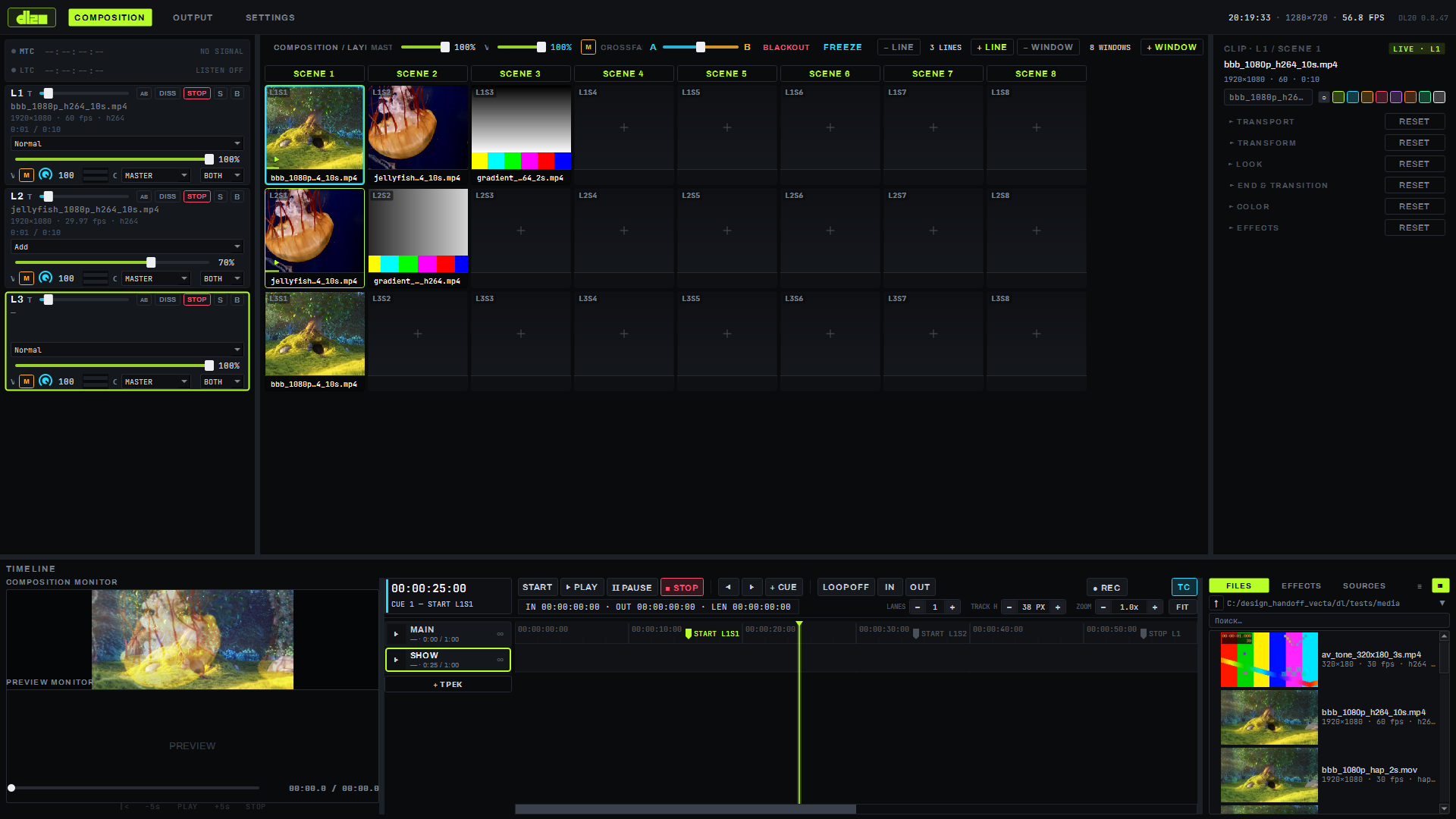
dl_composition.exe. The window opens maximized on the COMPOSITION screen. - In the media browser at the bottom right, open the FILES tab, navigate to the folder with video
(the path is shown in the line above the list), and drag the file you need into the top-left grid
cell — labeled
L1S1(line 1, window 1). Double-clicking a file in the browser places it on the currently selected layer the same way. - Click the
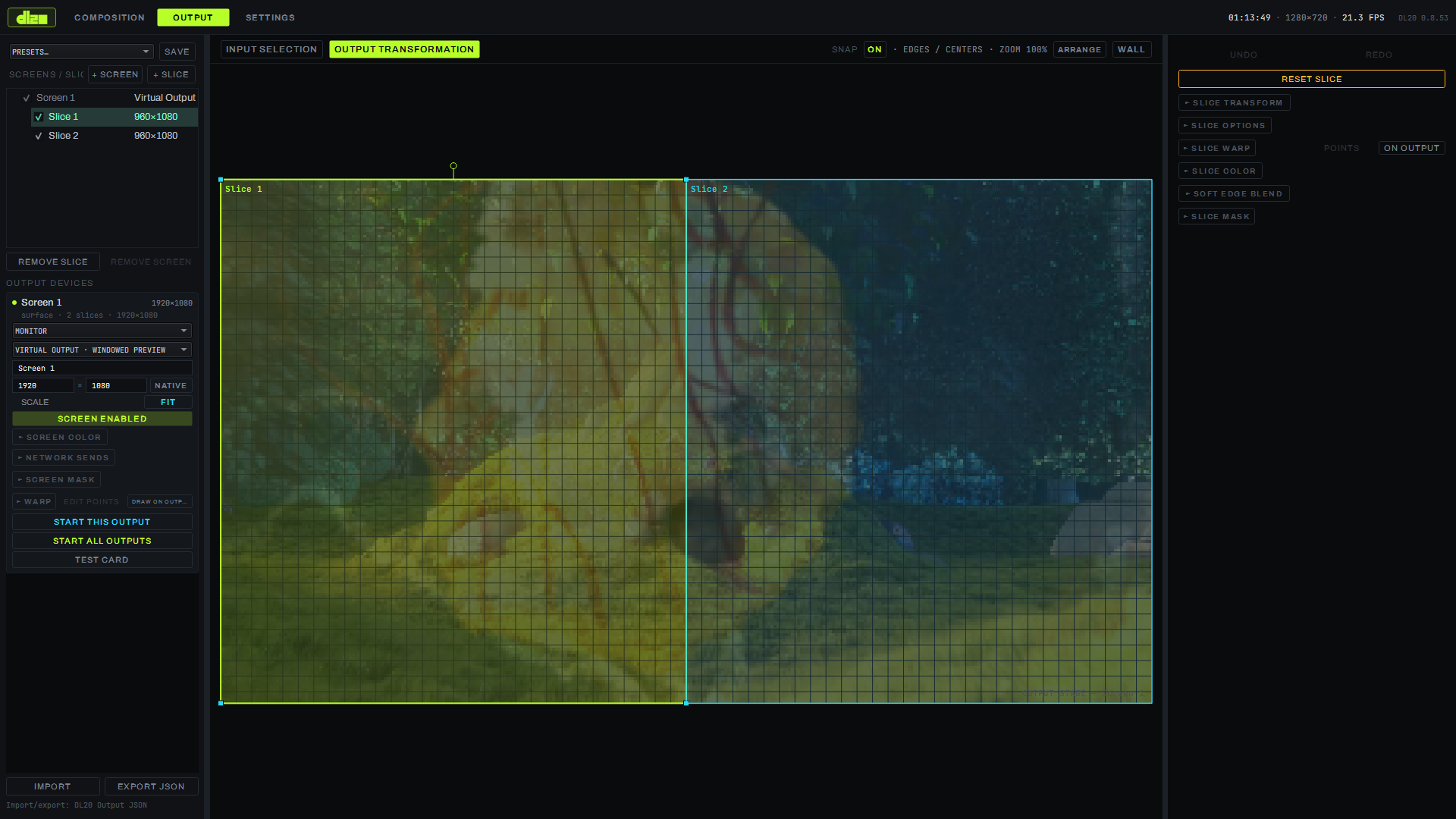
L1S1cell — the window starts with a transition (dissolve over 1 second by default) and its preview appears in the COMPOSITION MONITOR at the bottom left; clicking the cell again stops it. - Switch to the OUTPUT tab. If there is no screen yet, add one with the + SCREEN button and a slice with + SLICE. On the left, in the OUTPUT DEVICES block, pick a physical display from the list (the machine's primary display is listed first) and enable SCREEN ENABLED.
- Click START THIS OUTPUT (or START ALL OUTPUTS if there are several outputs) — a borderless, full-screen projection window opens on the selected display, showing the same composition.
- To stop the show — click the running cell on the COMPOSITION screen again (STOP) and, if needed, stop the output on the OUTPUT screen with the same button that started it.
Window launch parameters
| Parameter | Range | Default |
|---|---|---|
| Transition time T when launching a window | 0–10 s, step 0.1 s (0 s — instant CUT) | 1 s |
Limitations
- The operator has a single workstation screen; up to 64 output screens (projectors, monitors, LED) can be built, but each is configured separately on the OUTPUT screen.
- The composition is rendered once regardless of the number of connected outputs.