13. External control
A show can be controlled by more than the mouse and keyboard at the machine: the SETTINGS → CONTROLLERS card brings together MIDI devices with MIDI Learn, receiving OSC commands, and a web remote for a phone or tablet. Next to it are the hotkeys that work right on the COMPOSITION screen.
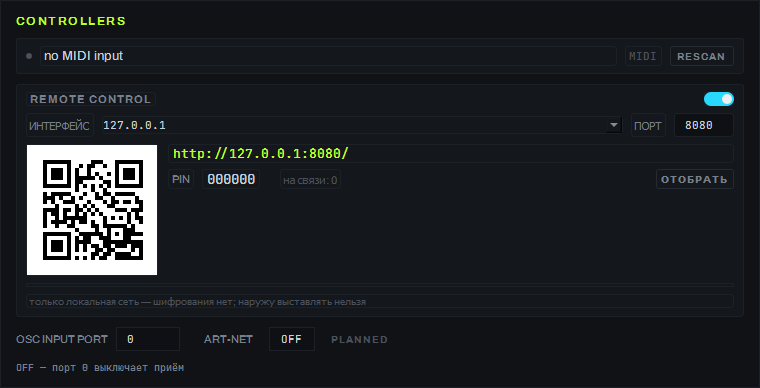
MIDI and MIDI Learn
The card's top row is the open MIDI input: a colored status dot, the device name (or no MIDI input) and
the RESCAN button for hot-plugging a new controller.
MIDI Learn maps a physical controller onto a parameter without a separate bindings screen:
- Press the M button next to the parameter you need — layer volume (on the layer strip, page 06) or master volume (next to VOL in the master section). For launching a window — right-click the grid cell and pick MIDI Learn Launch.
- The button or menu item arms a waiting state — the program is ready to accept a move from the controller; pressing it again before that move cancels the wait.
- Move the fader or encoder you need, or press the button on the MIDI device — the binding is created right away.
The A/B crossfader is bound to MIDI CC 8 by default. Bindings are stored in the project; the engine holds 500+ bindings without a frame drop (0.28 µs to process an event).
OSC
The OSC INPUT PORT field in the same card turns on receiving commands over UDP. The default port is
0, meaning reception is off — the program does not open a network port on the operator's machine until
explicitly asked to. Enter a number and press Enter (or leave the field) — the value is applied and
remembered for this machine. The line under the field shows the state: OFF, LISTENING udp/<port> ·
received N · <last address>, or an error message if the port is taken by another program.
Launching a scene and launching a window are supported (at addresses compatible with Resolume), and, as of
0.8.84, track and group addresses for the timeline's track rack
(/composition/tracks/…, /composition/groups/…) — connect/disconnect/toggle/go/position. The full list of
addresses and arguments — page 14. OSC reference.
Web remote (REMOTE CONTROL)
The REMOTE CONTROL card raises a remote web page on a phone or tablet on the local network.
- Turn on the REMOTE CONTROL toggle.
- Pick a network ИНТЕРФЕЙС (interface) and, if needed, change the ПОРТ (port, default 8080).
- On the phone, point the camera at the QR code next to the address, or type the address by hand
(
http://<interface>:<port>/). - A new device first sees the "Connect to DL20" screen: enter the six-digit PIN — shown in large digits in the same card — and press CONNECT. The page language (Russian or English) is picked on this screen too. A paired device opens the remote straight away; the PIN screen comes back only if DL20 stops recognizing the device (for example, after ОТОБРАТЬ, kick all).
- The "на связи: N" (connected: N) counter grows with each connected device; the ОТОБРАТЬ (kick all) button drops every remote session at once.
The remote page speaks Russian and English; the captions below are the ones its English version shows, while the pictures show the Russian version.
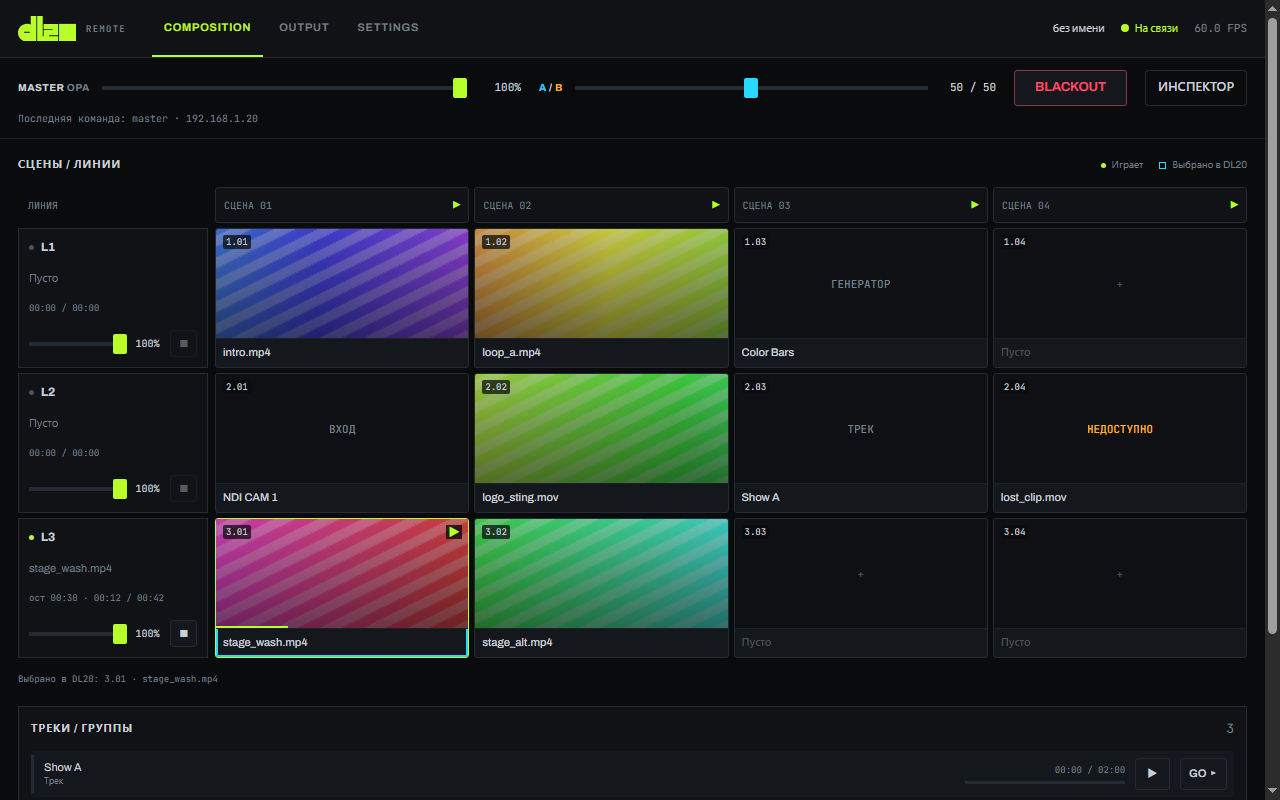
The page has three tabs — COMPOSITION, OUTPUT and SETTINGS; switching the remote's tab does not switch the screen on the machine. Under the header, on every tab, a bar stays pinned: MASTER, the A/B crossfader, BLACKOUT (labeled "BLACKOUT ON" when on), INSPECTOR and the "Last command: name · address" line — who moved a control last and from where; if DL20 refused the command, the line turns red and ends with "refused".
COMPOSITION. The SCENES / LAYERS matrix: a "SCENE NN ▶" header launches the whole scene, a cell launches its window. A cell shows the clip thumbnail, source type and name; the playing window is marked with ▶ and a frame, the window selected on the machine — with the "Selected in DL20" mark (legend above the matrix); empty and unavailable cells cannot be pressed. Each layer shows its clip name (plus "rem M:SS · position / duration" when it holds a clip), an OPA (opacity) slider and a ■ (stop layer) button. Tapping a cell caption opens the INSPECTOR: "LAYER N / SCENE NN", thumbnail, source, position, duration, remaining time, OPA and the LAUNCH and STOP LAYER buttons. A window picked on the machine does not pull an open inspector away: a "DL20 selected L.CC → go to" plate appears in it, and the inspector moves there only when you tap the plate. While the inspector is closed and no cell is picked on the remote itself, the remote follows the machine's selection ("Follow clip selection in DL20" in SETTINGS).
Below is the TRACKS / GROUPS section in the order of the timeline's track rack: a group sits in the place of its first track (color chip, name, the master's time, ▶/■ by the master's state, GO ▸), with its members under it; standalone tracks get rows of their own. A tap goes through the same door as the panel's button — ▶ on a member starts its whole group. The remote only shows and starts groups: creating, renaming or coloring a group is only possible on the timeline panel. A live composition frame (PREVIEW) is turned on in SETTINGS with the "Show live preview" checkbox.
OUTPUT. An outputs summary, TEST CARD, screen cards (screen selection, START/STOP with the current state highlighted, IDENTIFY), START ALL and STOP ALL — the latter asks for confirmation: the button turns red and reads "CONFIRM STOP". For the selected screen — SCREEN COLOR (OPA, brightness, contrast, red, green, blue), SLICES, SLICE BLENDING (LEFT/RIGHT/TOP/BOTTOM edge, EDGE ENABLED, SMOOTH, RESET, gamma) and GEOMETRY: after UNLOCK — the points of the selected SLICE WARP layer, nudge arrows with a STEP of 0.1 / 1 / 10, RESET and UNDO. If there is nothing to move, the remote says why: "This slice has no warp layers (SLICE WARP → + LAYER)." or "Select a node.". Screen, slice and node selection is shared with the machine.
SETTINGS. CONNECTION — address, status, project, FPS, state age and a RECONNECT button; THIS REMOTE — language, density, "Follow clip selection in DL20", "Show live preview" (saved only in this browser); COMMANDS — a log of your own commands with the result of each.
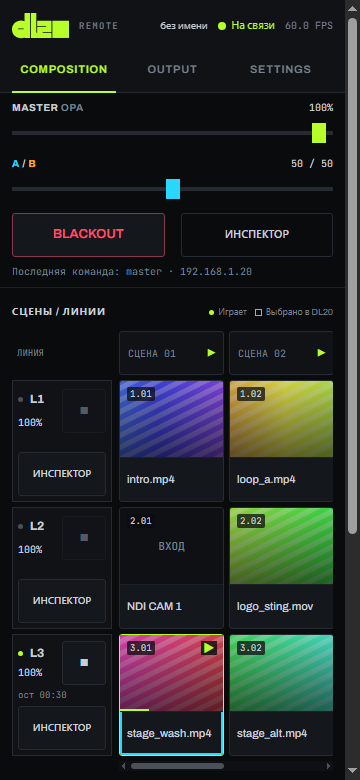
On a phone MASTER and A/B get full-width rows of their own, with BLACKOUT and INSPECTOR below them; each layer has a ■ button (and "rem M:SS" when it holds a clip), layer opacity is changed in the inspector, and scenes scroll to the right. On phones and tablets buttons are at least 44 px.
Connection. If no data arrives for more than three seconds, the sections fade, "Link stalled — commands are not getting through" pops up, and a RECONNECT button (a ↻ icon on phones and tablets) appears next to the indicator in the header. The remote reconnects on its own — with a growing pause of up to 8 s — or at once with that button. Without a connection controls do nothing: a tap shows "Disconnected: commands are disabled.".
How a command travels. A command from the remote goes through the same door as a button on screen — the person at the machine always outranks remote control. Every command gets a result: it shows in the SETTINGS log, and a refusal also pops up as a message; a command that could not be delivered is retried, and if that fails too, the remote says "Not delivered" right away. The remote's command queue is capped at 512: on overflow (a stuck or foreign device sending without pauses) the oldest command is dropped, but never BLACKOUT — the emergency button is never lost.
The card states outright: local network only, no encryption, do not expose it to the internet.
Hotkeys
| Key | Action |
|---|---|
| Ctrl+S / Ctrl+Shift+S / Ctrl+O | project: save / save as / open |
| Ctrl+Z / Ctrl+Shift+Z | undo / redo (grid, effects, timeline, mapping, bindings) |
| 1…8 / Ctrl+1…8 | window N on the selected layer / whole scene (column) N |
| Ctrl+Shift+B / Ctrl+Shift+F | BLACKOUT / FREEZE |
| F9 | diagnostics overlay: FPS, frame time, VRAM, decoder fps |
| F10 | send output to the operator's monitor and back (without a mouse) |
| F11 / ESC | fullscreen / exit it; ESC closes the projection window |
| Delete | delete the selection (window, cue, block, node) |
Limitations
- There is no separate screen listing every MIDI/OSC binding — MIDI Learn is only set up through the M buttons and a right click on screen elements.
- OSC — launch commands for a scene, a window, a track and a group (0.8.84); there is no addressing by name (only the rack index or an id), no sending OSC out, and no feedback into the remote.
- Refusal explanations written by DL20 itself (for example «ячейка пуста», the cell is empty) reach the remote in Russian and are shown as is in the English version of the page too.
- Art-Net in as a controller exists in the engine, but is not yet wired into the program — the field is
honestly marked
PLANNED.